Turn the Checking Times You Already Use into a Routine
Blood sugar reminders are most useful when they reflect the schedule you have agreed with your care team. In Gludiary, open Settings, choose Reminders, add or enable the prompts you need, and select a time for each one. iOS asks for notification permission the first time notifications are needed, and you can change that permission later in iPhone Settings.
A reminder can support recurring moments such as a morning check or a bedtime check. It does not decide when you should test. Your healthcare professional determines whether, when, and how often home glucose checks are appropriate for you.
A Reminder Is a Prompt, Not a Glucose Alert
Gludiary does not continuously monitor glucose and cannot know whether your level is high or low before you enter or import a reading. Its scheduled reminders are prompts to follow your routine; they are not CGM alarms, emergency warnings, or treatment instructions.
After measuring with your own device, enter the displayed value manually or use the iPhone camera scanner. Always confirm the number and unit before saving. If you have symptoms or a reading that concerns you, follow your care plan and contact an appropriate healthcare professional rather than waiting for an app reminder.
Give Every Reminder a Useful Follow-Through
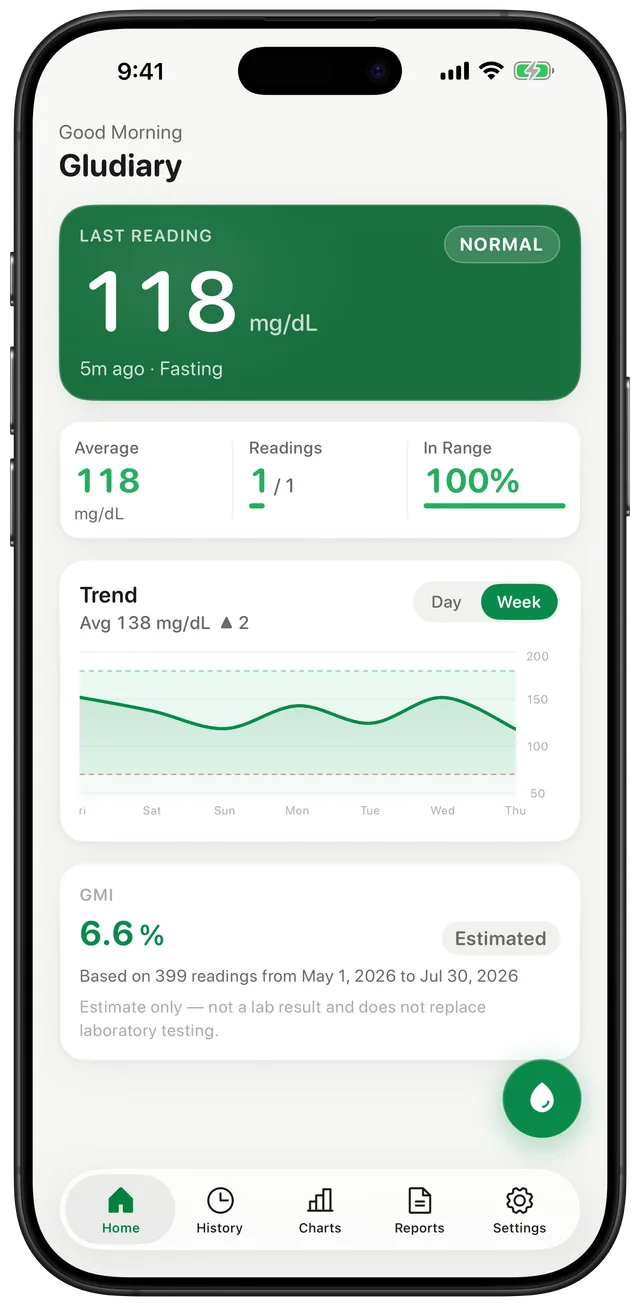
Recording the value when the notification arrives turns a reminder into a useful history. Tag the reading as fasting, before meal, after meal, or bedtime, and add a short note when context matters. Gludiary groups those entries by day and turns them into trend charts and summaries.
Consistency matters more than creating a complicated notification schedule. Start with the times your care plan already uses, keep only the reminders that help, and review the resulting history in Gludiary or in a PDF or CSV report.
Gludiary reminders are scheduled prompts, not glucose alarms. The app does not measure blood sugar, monitor you continuously, detect emergencies, or recommend when to test or how to respond to a reading.
How to Set a Blood Sugar Reminder
Open Reminders
In Gludiary Settings, choose Reminders and allow iPhone notifications if prompted.
Choose a useful time
Add or enable a reminder that matches a checking time already included in your care routine.
Measure and record
When notified, use your own glucose device, then enter the result and relevant context in Gludiary.
Frequently Asked Questions
Can Gludiary remind me to check my blood sugar?
Yes. You can add or enable reminders in Gludiary Settings and choose their times. Notification permission is controlled by iOS.
Does a Gludiary reminder know if my glucose is high or low?
No. A reminder is scheduled by time and is not based on a live glucose measurement. Gludiary is not a CGM and does not provide high or low glucose alarms.
Can the app tell me how often I should test?
No. Testing frequency depends on your individual situation and care plan. Follow the schedule provided by your healthcare professional.
Make Your Checking Routine Easier to Remember
Download Gludiary, set the prompts that fit your care routine, and keep each measured reading in a clearer iPhone history.
Download on the App Store