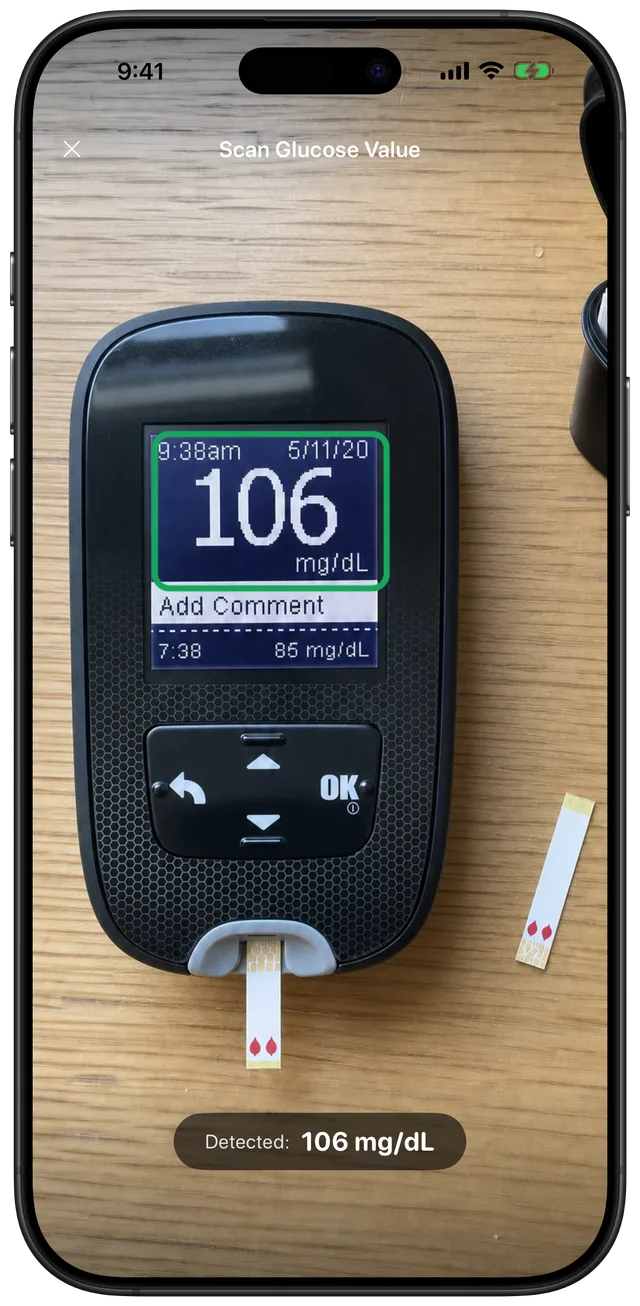
Camera Scanning Reduces Repetitive Typing
Fingerstick meters already show the result you need to record. Gludiary's scanner helps move that displayed number into the app: point the camera at the screen, let the scanner detect the digits, and review the result before saving.
This is especially useful when your meter has no Bluetooth connection, when you use more than one meter, or when pairing a device feels like unnecessary setup. The camera option and the large-button manual entry remain available side by side, so you can use whichever is faster for the reading in front of you.
The Camera Reads the Display, Not Your Blood Sugar
The distinction matters: Gludiary does not measure glucose through the iPhone camera. Your glucose meter performs the measurement. The camera scanner only recognises the digits already visible on the meter's screen, similar to copying a number with optical character recognition.
Lighting, glare, a damaged display, or unusual digit shapes can affect camera recognition. Always compare the detected value and unit with the meter before saving it. If they do not match, use the numpad to enter the correct number.
Add the Context the Meter Display Cannot Show
Once the value is captured, you can label it as fasting, before meal, after meal, or bedtime and add notes or custom tags. This turns a bare number into a useful record of when and why it was taken.
Over time, those entries feed Gludiary's history, charts, time-in-range view, and reports. The scanner saves typing; the surrounding log is what makes the reading easier to review later.
Always verify the detected number and whether your meter uses mg/dL or mmol/L before saving. Camera recognition can be affected by glare, framing, display damage, and digit style. Manual entry remains available without a scan limit.
How to Scan a Glucose Meter Display
Open the scanner
From the add-reading screen, choose the camera option and allow camera access if prompted.
Frame the meter display
Hold the iPhone steadily so the digits are clear and reduce glare across the screen.
Check and save
Compare the detected value and unit with the meter, add context, and save only when they match.
Frequently Asked Questions
Can an iPhone camera measure blood sugar?
No. Gludiary does not use the camera to measure glucose. Your glucose meter performs the measurement; Gludiary's camera scanner reads the digits displayed by that meter.
What if the scanner detects the wrong number?
Do not save it as-is. Compare it with the meter display and use manual entry to correct the value. Always verify the unit as well as the digits.
Do I need a Bluetooth glucose meter to use the scanner?
No. The camera scanner reads the visible display and does not require Bluetooth pairing. Display design and lighting can affect recognition, so results must be checked before saving.
How many glucose meter scans are included?
The free plan includes one camera scan per day. Premium includes unlimited scans, and manual entry remains available without a scan limit.
Spend Less Time Copying Meter Readings
Download Gludiary, scan the digits on your meter display, verify the result, and keep the reading in a clearer history.
Download on the App Store